
4.1 KiB
Creating a Plugin
This guide walks you through the steps to create an Angular plugin for our platform. You'll start by setting up the basic structure, configuring necessary files, and then running a local server to preview your plugin.
If you prefer to create the plugin without a specific framework there's also Creating a Plugin.
Keep in mind that this guide is for creating a plugin inside penpot-plugins monorepo. If you want to create a plugin outside our environment you can check the Penpot Plugin Starter Template or the documentation at Create a Plugin.
Let's dive in.
Step 1: Initialize the Plugin
First, you need to create the scaffolding for your plugin. Use the Angular CLI to generate a new application:
cd apps
ng new example-plugin --style=css --routing=false --skip-git --skip-install
cd ..
pnpm install
Then register it in angular.json by adding a new project entry (see existing plugins for reference).
Step 2: Configure the Manifest
Next, create a manifest.json file inside the /src/assets directory. This file is crucial as it defines key properties of your plugin, including permissions and the entry point script.
{
  "name": "Example plugin",
  "host": "http://localhost:4200",
  "code": "/assets/plugin.js",
  "icon": "/assets/icon.png",
  "permissions": [
    "content:write",
    "library:write",
    "user:read",
    "comment:read",
    "allow:downloads"
  ]
}
Step 3: Update Project Configuration
Update angular.json to configure the build for your plugin. Add to the project's architect.build.options:
"styles": [
  "libs/plugins-styles/src/lib/styles.css",
  "apps/example-plugin/src/styles.css"
],
"optimization": {
  "scripts": true,
  "styles": true,
  "fonts": false
}
Add a custom port to architect.serve.options:
"port": 4302
For choosing the port go check the Sample Plugins table at the README so your plugin doesn't use a duplicate port. We're using the range 4300-4399.
Create a package.json in your plugin folder with build scripts:
{
  "name": "example-plugin",
  "scripts": {
    "build": "ng build example-plugin",
    "serve": "ng serve example-plugin",
    "lint": "eslint src --ext .ts,.html"
  }
}
Step 4: Modify TypeScript Configuration
Create ``tsconfig.plugin.jsonnext to thetsconfig.json`:
{
  "extends": "./tsconfig.json",
  "compilerOptions": {
    "types": []
  },
  "files": ["src/plugin.ts"],
  "include": ["../../libs/plugin-types/index.d.ts"]
}
Add the reference to the main tsconfig.json:
"references": [
  {
    "path": "./tsconfig.plugin.json"
  }
],
Step 5: Add TS parser to eslint
Add these options to the end of the eslint.config.js file to allow linting with type information:
  {
    languageOptions: {
      parserOptions: {
        project: './tsconfig.*?.json',
        tsconfigRootDir: import.meta.dirname,
      },
    },
  },
Strep 6: Hello world plugin code
Create the file apps/example-plugin/src/plugin.ts with the following code:
console.log('Hello Plugin');
Step 7: Run the plugin
Run this command:
pnpm --filter example-plugin serve
This will start the Angular development server.
Step 8: Load the Plugin in Penpot
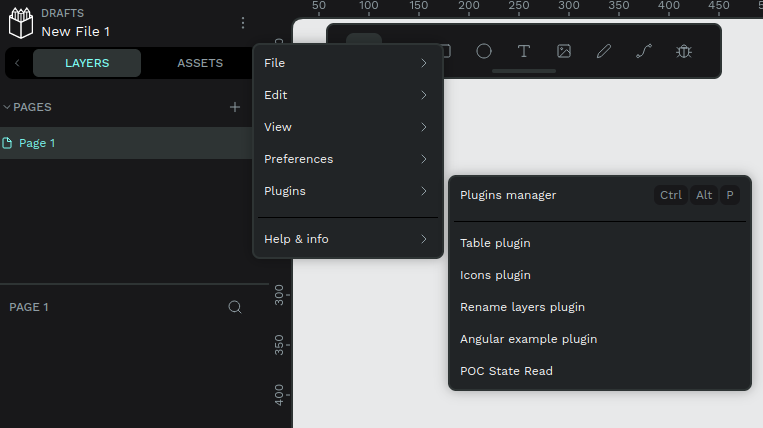
To load your plugin into Penpot you can use the shortcut Ctrl + Alt + P to directly open the Plugin manager modal. There you need to provide the plugin's manifest URL (example: http://plugin.example/manifest.json) for the installation. If there's no issues the plugin will be installed and then you would be able to open it whenever you like.
You can also open the Plugin manager modal via:
-
Menu

Step 9: Build plugin
pnpm --filter example-plugin build
Learn More About Plugin Development
For more detailed information on plugin development, check out our guides: