 c7399215ec
- Updated test cases to reflect new column names (eve_MAC -> eveMac, eve_DateTime -> eveDateTime, etc.) across various test files.
- Modified SQL table definitions in the database cleanup and migration tests to use camelCase naming conventions.
- Implemented migration tests to ensure legacy column names are correctly renamed to camelCase equivalents.
- Ensured that existing data is preserved during the migration process and that views referencing old column names are dropped before renaming.
- Verified that the migration function is idempotent, allowing for safe re-execution without data loss.
14 KiB
Executable File
Plugin Development Guide
This comprehensive guide covers how to build plugins for NetAlertX.
Tip
New to plugin development? Start with the Quick Start Guide to get a working plugin in 5 minutes.
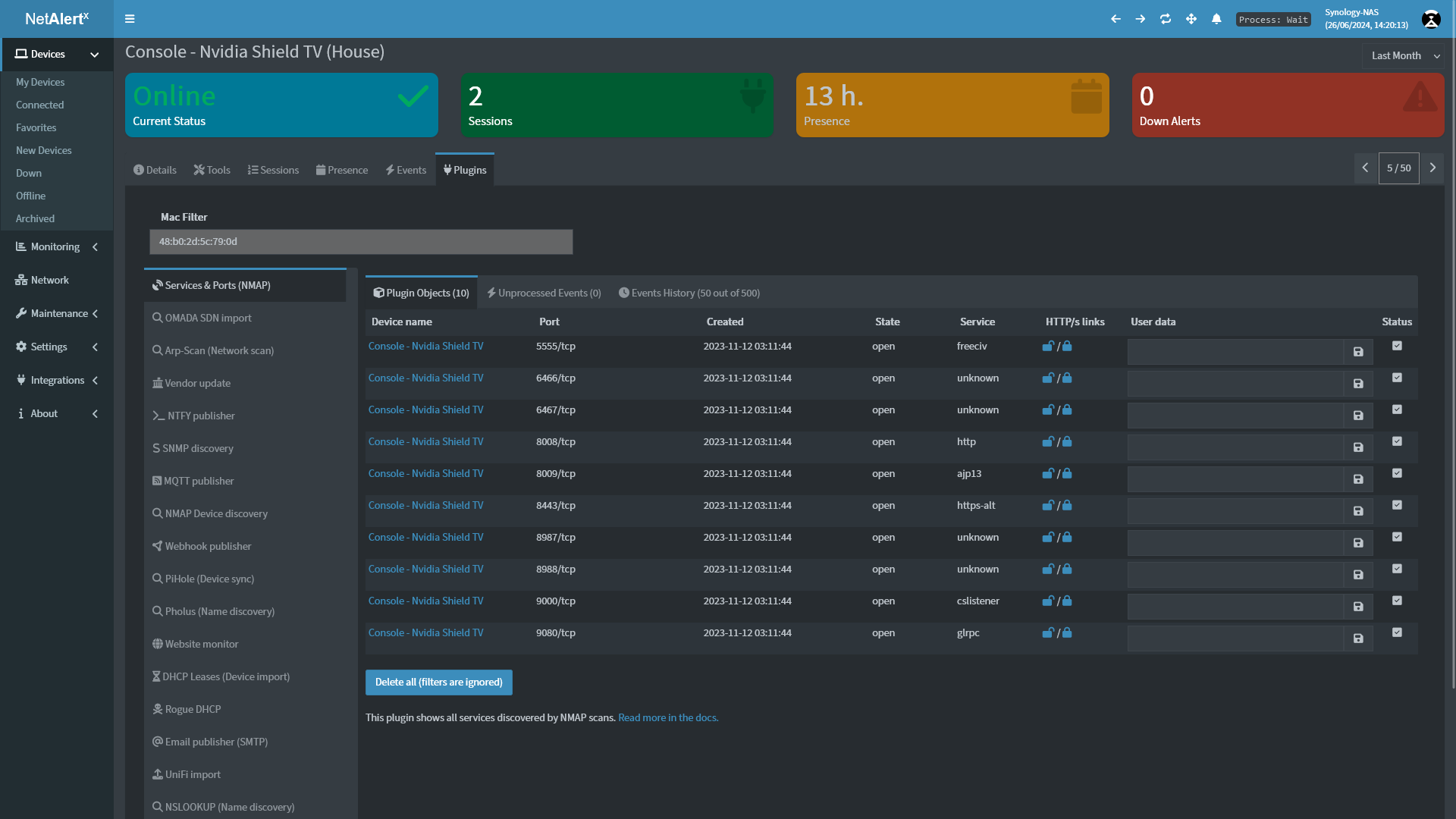
NetAlertX comes with a plugin system to feed events from third-party scripts into the UI and then send notifications, if desired. The highlighted core functionality this plugin system supports:
- Dynamic UI generation - Automatically create tables for discovered objects
- Data filtering - Filter and link values in the Devices UI
- User settings - Surface plugin configuration in the Settings UI
- Rich display types - Color-coded badges, links, formatted text, and more
- Database integration - Import plugin data into NetAlertX tables like
CurrentScanorDevices
Note
For a high-level overview of how the
config.jsonis used and its lifecycle, see the config.json Lifecycle Guide.
Quick Links
🚀 Getting Started
- Quick Start Guide - Create a working plugin in 5 minutes
- Development Environment Setup - Set up your local development environment
📚 Core Concepts
- Data Contract - The exact output format plugins must follow (9-13 columns, pipe-delimited)
- Data Sources - How plugins retrieve data (scripts, databases, templates)
- Plugin Settings System - Let users configure your plugin via the UI
- UI Components - Display plugin results with color coding, links, and more
🏗️ Architecture
- Plugin Config Lifecycle - How
config.jsonis loaded and used - Full Plugin Development Reference - Comprehensive details on all aspects
🐛 Troubleshooting
- Debugging Plugins - Troubleshoot plugin issues
- Plugin Examples - Study existing plugins as reference implementations
🎥 Video Tutorial

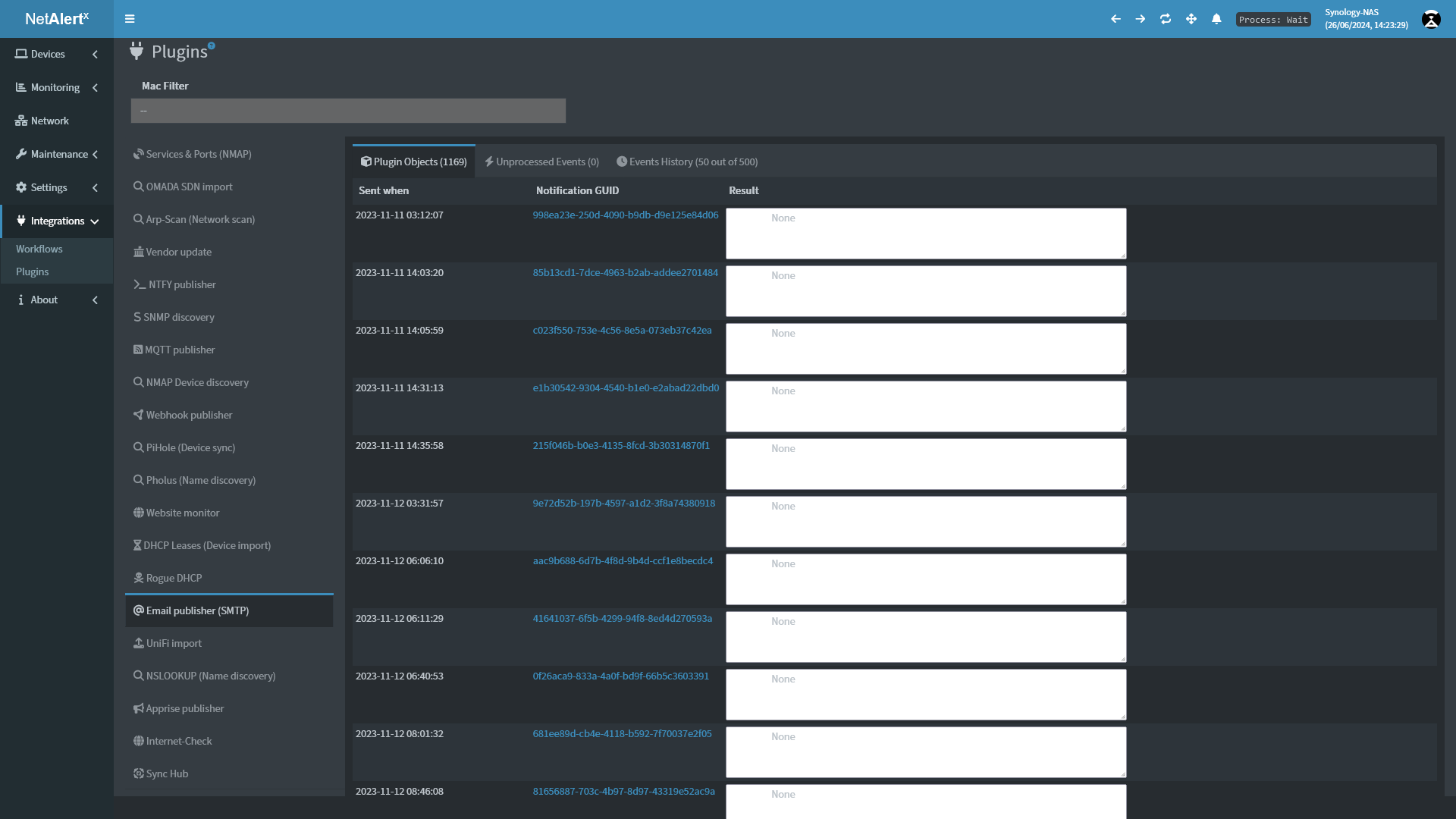
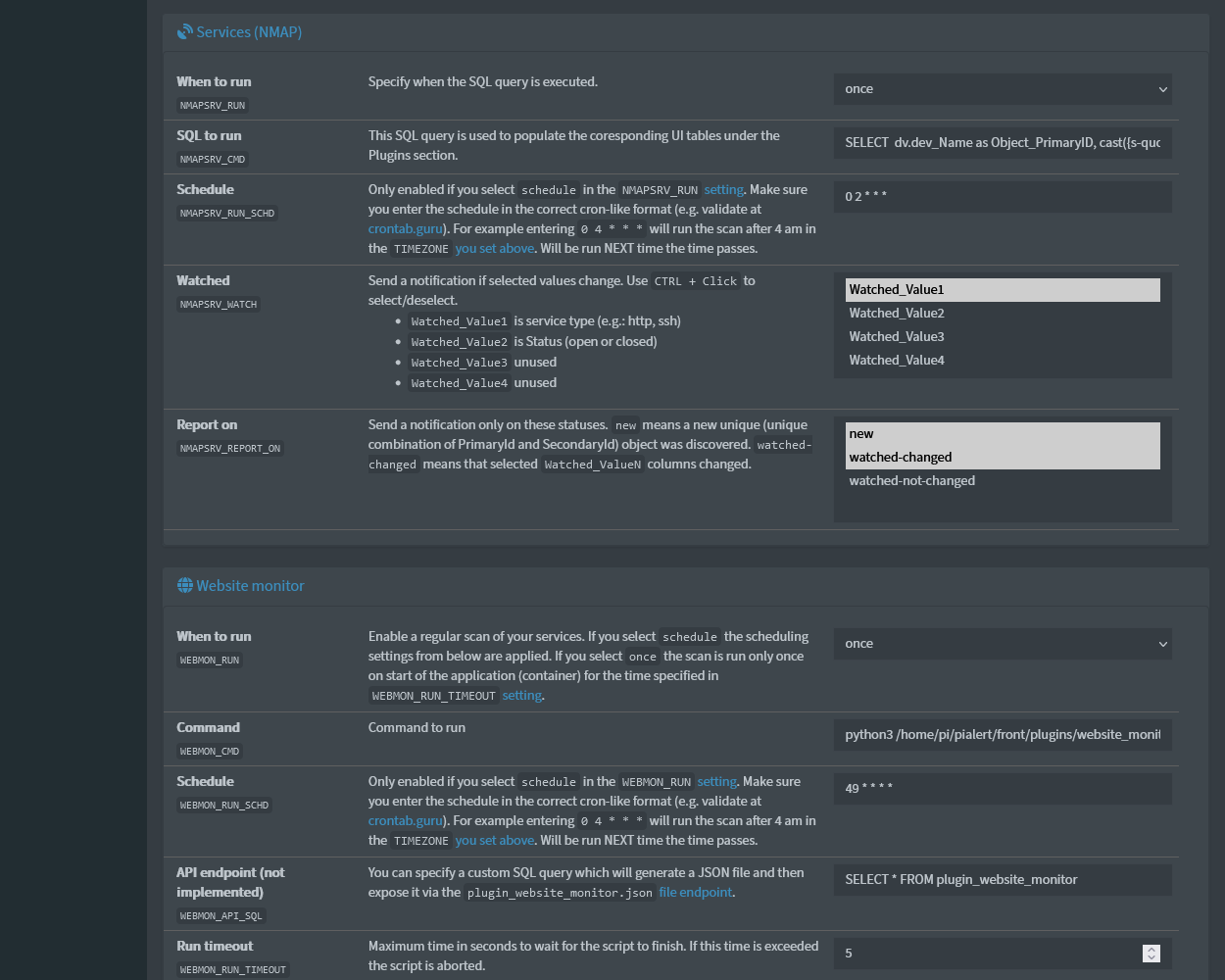
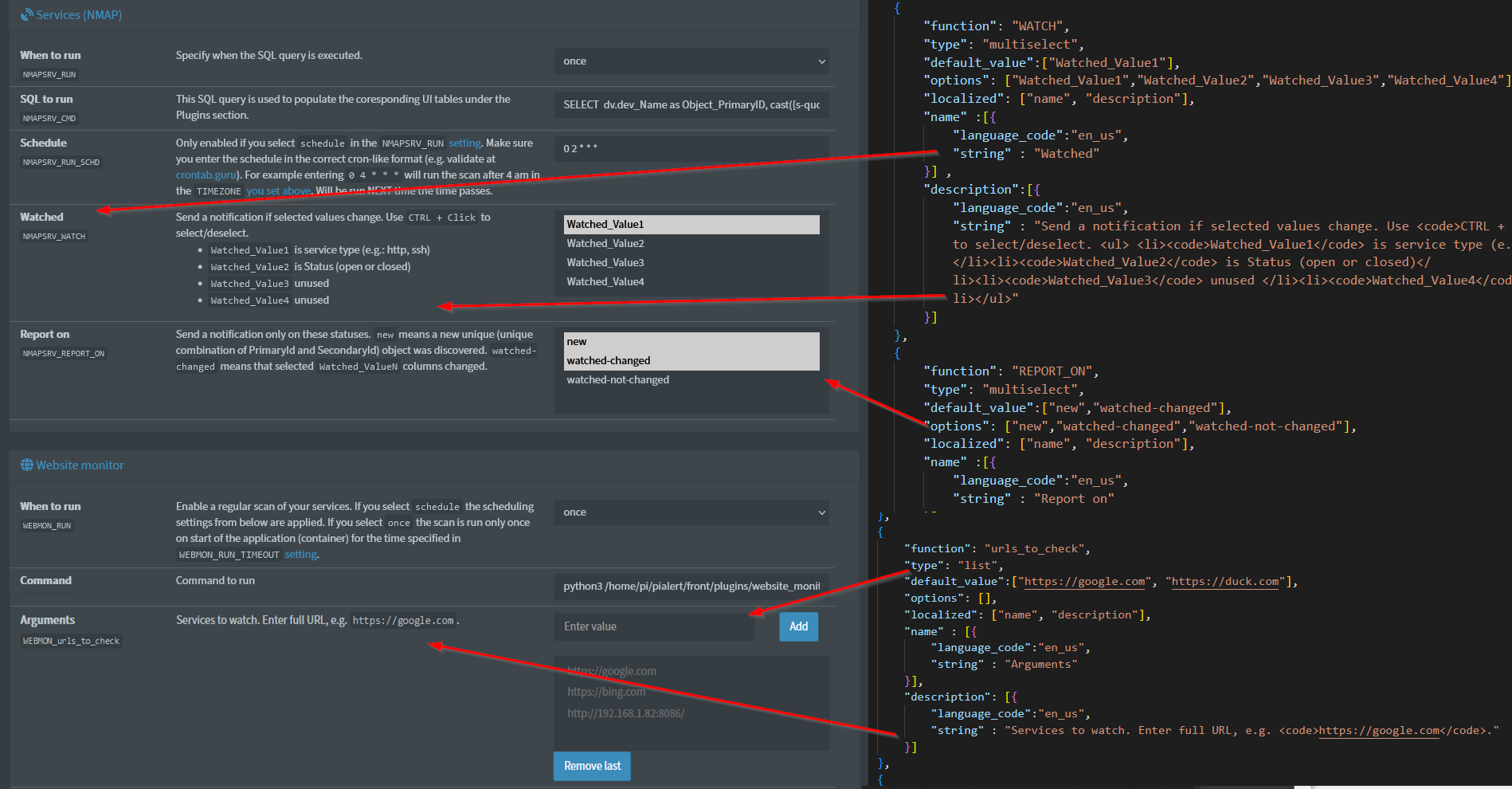
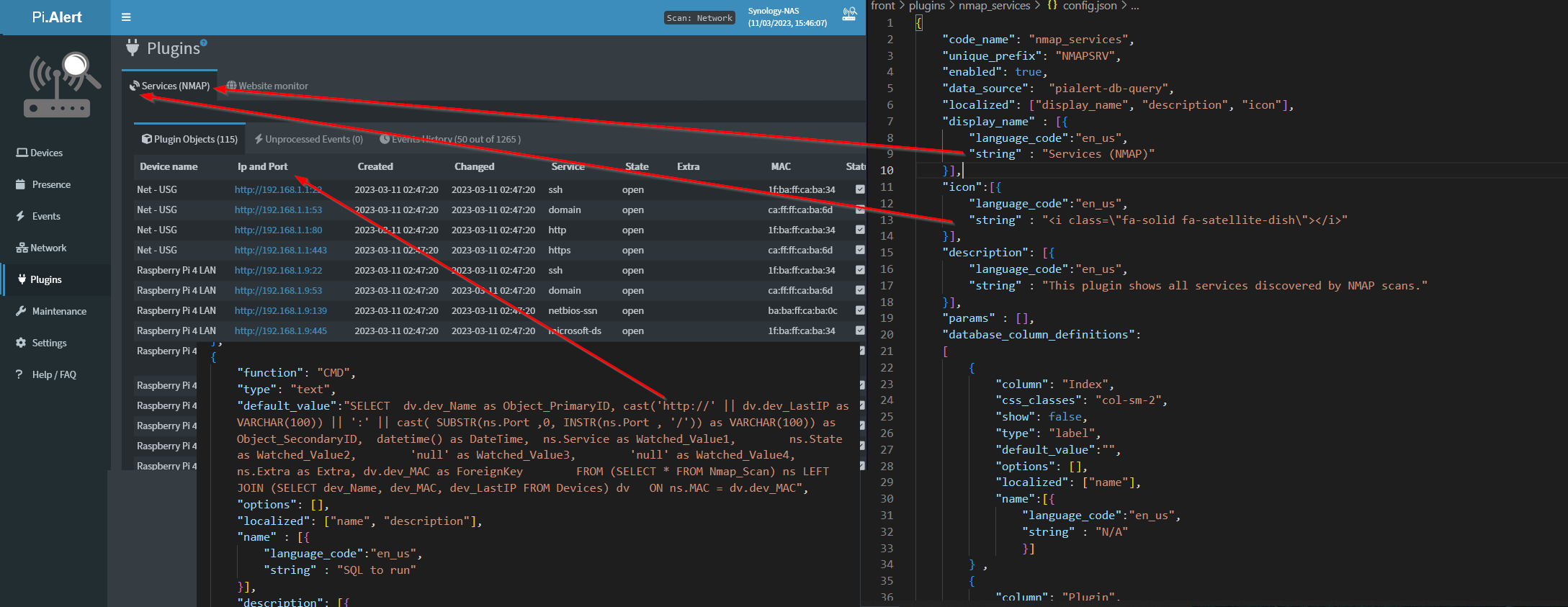
📸 Screenshots
 |
 |
 |
|---|---|---|
 |
 |
Use Cases
Plugins are infinitely flexible. Here are some examples:
- Device Discovery - Scan networks using ARP, mDNS, DHCP leases, or custom protocols
- Service Monitoring - Monitor web services, APIs, or network services for availability
- Integration - Import devices from PiHole, Home Assistant, Unifi, or other systems
- Enrichment - Add data like geolocation, threat intelligence, or asset metadata
- Alerting - Send notifications to Slack, Discord, Telegram, email, or webhooks
- Reporting - Generate insights from existing NetAlertX database (open ports, recent changes, etc.)
- Custom Logic - Create fake devices, trigger automations, or implement custom heuristics
If you can imagine it and script it, you can build a plugin.
Limitations & Notes
- Plugin data is deduplicated hourly (same Primary ID + Secondary ID + User Data = duplicate removed)
- Currently, only
CurrentScantable supports update/overwrite of existing objects - Plugin results must follow the strict Data Contract
- Plugins run with the same permissions as the NetAlertX process
- External dependencies must be installed in the container
Plugin Development Workflow
Step 1: Understand the Basics
- Read Quick Start Guide - 5 minute overview
- Study the Data Contract - Understand the output format
- Choose a Data Source - Where does your data come from?
Step 2: Create Your Plugin
- Copy the
__templateplugin folder (see below for structure) - Update
config.jsonwith your plugin metadata - Implement
script.py(or configure alternative data source) - Test locally in the devcontainer
Step 3: Configure & Display
- Define Settings for user configuration
- Design UI Components for result display
- Map to database tables if needed (for notifications, etc.)
Step 4: Deploy & Test
- Restart the backend
- Test via Settings → Plugin Settings
- Verify results in UI and logs
- Check
/tmp/log/plugins/last_result.<PREFIX>.log
See Quick Start Guide for detailed step-by-step instructions.
Plugin File Structure
Every plugin lives in its own folder under /app/front/plugins/.
Important: Folder name must match the
"code_name"value inconfig.json
/app/front/plugins/
├── __template/          # Copy this as a starting point
│   ├── config.json      # Plugin manifest (configuration)
│   ├── script.py        # Your plugin logic (optional, depends on data_source)
│   └── README.md        # Setup and usage documentation
├── my_plugin/           # Your new plugin
│   ├── config.json      # REQUIRED - Plugin manifest
│   ├── script.py        # OPTIONAL - Python script (if using script data source)
│   ├── README.md        # REQUIRED - Documentation for users
│   └── other_files...   # Your supporting files
Plugin Manifest (config.json)
The config.json file is the plugin manifest - it tells NetAlertX everything about your plugin:
- Metadata: Plugin name, description, icon
- Execution: When to run, what command to run, timeout
- Settings: User-configurable options
- Data contract: Column definitions and how to display results
- Integration: Database mappings, notifications, filters
Example minimal config.json:
{
  "code_name": "my_plugin",
  "unique_prefix": "MYPLN",
  "display_name": [{"language_code": "en_us", "string": "My Plugin"}],
  "description": [{"language_code": "en_us", "string": "My awesome plugin"}],
  "icon": "fa-plug",
  "data_source": "script",
  "execution_order": "Layer_0",
  "settings": [
    {
      "function": "RUN",
      "type": {"dataType": "string", "elements": [{"elementType": "select", "elementOptions": [], "transformers": []}]},
      "default_value": "disabled",
      "options": ["disabled", "once", "schedule"],
      "localized": ["name"],
      "name": [{"language_code": "en_us", "string": "When to run"}]
    },
    {
      "function": "CMD",
      "type": {"dataType": "string", "elements": [{"elementType": "input", "elementOptions": [], "transformers": []}]},
      "default_value": "python3 /app/front/plugins/my_plugin/script.py",
      "localized": ["name"],
      "name": [{"language_code": "en_us", "string": "Command"}]
    }
  ],
  "database_column_definitions": []
}
For comprehensive
config.jsondocumentation, see PLUGINS_DEV_CONFIG.md
Full Reference (Below)
The sections below provide complete reference documentation for all plugin development topics. Use the quick links above to jump to specific sections, or read sequentially for a deep dive.
More on specifics below.
Data Contract & Output Format
For detailed information on plugin output format, see PLUGINS_DEV_DATA_CONTRACT.md.
Quick reference:
- Format: Pipe-delimited (
|) text file - Location:
/tmp/log/plugins/last_result.<PREFIX>.log - Columns: 9 required + 4 optional = 13 maximum
- Helper: Use
plugin_helper.pyfor easy formatting
The 9 Mandatory Columns
| Column | Name | Required | Example |
|---|---|---|---|
| 0 | objectPrimaryId | YES | "device_name" or "192.168.1.1" |
| 1 | objectSecondaryId | no | "secondary_id" or null |
| 2 | DateTime | YES | "2023-01-02 15:56:30" |
| 3 | watchedValue1 | YES | "online" or "200" |
| 4 | watchedValue2 | no | "ip_address" or null |
| 5 | watchedValue3 | no | null |
| 6 | watchedValue4 | no | null |
| 7 | Extra | no | "additional data" or null |
| 8 | ForeignKey | no | "aa:bb:cc:dd:ee:ff" or null |
See Data Contract for examples, validation, and debugging tips.
Config.json: Settings & Configuration
For detailed settings documentation, see PLUGINS_DEV_SETTINGS.md and PLUGINS_DEV_DATASOURCES.md.
Setting Object Structure
Every setting in your plugin has this structure:
{
  "function": "UNIQUE_CODE",
  "type": {"dataType": "string", "elements": [...]},
  "default_value": "...",
  "options": [...],
  "localized": ["name", "description"],
  "name": [{"language_code": "en_us", "string": "Display Name"}],
  "description": [{"language_code": "en_us", "string": "Help text"}]
}
Reserved Function Names
These control core plugin behavior:
| Function | Purpose | Required | Options |
|---|---|---|---|
RUN |
When to execute | YES | disabled, once, schedule, always_after_scan, before_name_updates, on_new_device |
RUN_SCHD |
Cron schedule | If RUN=schedule |
Cron format: "0 * * * *" |
CMD |
Command to run | YES | Shell command or script path |
RUN_TIMEOUT |
Max execution time | optional | Seconds: "60" |
WATCH |
Monitor for changes | optional | Column names |
REPORT_ON |
When to notify | optional | new, watched-changed, watched-not-changed, missing-in-last-scan |
DB_PATH |
External DB path | If using SQLite | /path/to/db.db |
See PLUGINS_DEV_SETTINGS.md for full component types and examples.
Filters & Data Display
For comprehensive display configuration, see PLUGINS_DEV_UI_COMPONENTS.md.
Filters
Control which rows display in the UI:
{
  "data_filters": [
    {
      "compare_column": "objectPrimaryId",
      "compare_operator": "==",
      "compare_field_id": "txtMacFilter",
      "compare_js_template": "'{value}'.toString()",
      "compare_use_quotes": true
    }
  ]
}
See UI Components: Filters for full documentation.
Database Mapping
To import plugin data into NetAlertX tables for device discovery or notifications:
{
  "mapped_to_table": "CurrentScan",
  "database_column_definitions": [
    {
      "column": "objectPrimaryId",
      "mapped_to_column": "scanMac",
      "show": true,
      "type": "device_mac",
      "localized": ["name"],
      "name": [{"language_code": "en_us", "string": "MAC Address"}]
    }
  ]
}
See UI Components: Database Mapping for full documentation.
Static Value Mapping
To always map a static value (not read from plugin output):
{
  "column": "NameDoesntMatter",
  "mapped_to_column": "scanSourcePlugin",
  "mapped_to_column_data": {
    "value": "MYPLN"
  }
}
UI Component Types
Plugin results are displayed in the web interface using various component types. See PLUGINS_DEV_UI_COMPONENTS.md for complete documentation.
Common Display Types
Read settings in your Python script:
from helper import get_setting_value

# Read a setting by code name (prefix + function)
api_url = get_setting_value('MYPLN_API_URL')
api_key = get_setting_value('MYPLN_API_KEY')
watch_columns = get_setting_value('MYPLN_WATCH')

print(f"Connecting to {api_url}")
Pass settings as command parameters:
Define params in config to pass settings as script arguments:
{
  "params": [
    {
      "name": "api_url",
      "type": "setting",
      "value": "MYPLN_API_URL"
    }
  ]
}
Then use in CMD: python3 script.py --url={api_url}
See PLUGINS_DEV_SETTINGS.md for complete settings documentation, and PLUGINS_DEV_DATASOURCES.md for data source details.
Quick Reference: Key Concepts
Plugin Output Format
objectPrimaryId|objectSecondaryId|DateTime|watchedValue1|watchedValue2|watchedValue3|watchedValue4|Extra|ForeignKey
9 required columns, 4 optional helpers = 13 max
See: Data Contract
Plugin Metadata (config.json)
{
  "code_name": "my_plugin",           // Folder name
  "unique_prefix": "MYPLN",           // Settings prefix
  "display_name": [...],              // UI label
  "data_source": "script",            // Where data comes from
  "settings": [...],                  // User configurable
  "database_column_definitions": [...] // How to display
}
See: Full Guide, Settings
Reserved Settings
RUN- When to execute (disabled, once, schedule, always_after_scan, etc.)RUN_SCHD- Cron scheduleCMD- Command/script to executeRUN_TIMEOUT- Max execution timeWATCH- Monitor for changesREPORT_ON- Notification trigger
See: Settings System
Display Types
label, device_mac, device_ip, url, threshold, replace, regex, textbox_save, and more.
See: UI Components
Tools & References
- Template Plugin:
/app/front/plugins/__template/- Start here! - Helper Library:
/app/front/plugins/plugin_helper.py- Use for output formatting - Settings Helper:
/app/server/helper.py- Useget_setting_value()in scripts - Example Plugins:
/app/front/plugins/*/- Study working implementations - Logs:
/tmp/log/plugins/- Plugin output and execution logs - Backend Logs:
/tmp/log/stdout.log- Core system logs