 39fb62970f
Refactor `--profile-*` flags:
- Multiple profile types can be enabled at once, before only
  a single type profiling could be done during a process execution.
- The new `--profiles-store-on-exit` enables all available profile
  types, except for CPU profiling which needs to be explicitly enabled.
- Profiling parameters can now be set via new flags. This allows setting
  the profile parameters for the pprof endpoint, as well as when saving
  profiles to files on exit.
- Group profiling flags with other observability flags
- Adds a `--diagnostics-output-directory` flag that unifies and
  supersedes the `--profile-dir` and `--metrics-directory` flags

Enhancements and behavior changes:
- Profile flags now have effect for all kopia commands, including
  `server start`. Before these flags did not have any effect
  in a few commands.
- Multiple profile types can be enabled at once, before only
  a single type profiling could be done during a process execution.
- The new `--profiles-store-on-exit` enables all available profile
  types, except for CPU profiling which needs to be explicitly enabled.
- Profiling parameters can now be set via new flags. This allows setting
  the profile parameters for the pprof endpoint, as well as when saving
  profiles to files on exit.

The following flags have been removed:
- `--profile-dir`: superseded by the `--diagnostics-output-directory` flag
- `--profile-blocking`: the `--profile-store-on-exit` flag enables blocking
  profiling. Use `--profile-blocking-rate=0` to explicitly disable it.
- `--profile-memory`: the `--profile-store-on-exit` flag enables memory
  profiling. Use `--profile-memory-rate=0` to explicitly disable it.
- `--profile-mutex`: the `--profile-store-on-exit` flag enables mutex
  profiling. Use `--profile-mutex-fraction=0` to explicitly disable it.

Add CLI test for profile flags.
Kopia










n.
Kopia is a fast and secure open-source backup/restore tool that allows you to create encrypted snapshots of your data and save the snapshots to remote or cloud storage of your choice, to network-attached storage or server, or locally on your machine. Kopia does not 'image' your whole machine. Rather, Kopia allows you to backup/restore any and all files/directories that you deem are important or critical.
Kopia has both CLI (command-line interface) and GUI (graphical user interface) versions, making it the perfect tool for both advanced and regular users. You can read more about Kopia's unique features -- which include compression, deduplication, user-controlled end-to-end encryption, and error correction -- to get a better understanding of how Kopia works.
When ready, head to the installation page to download and install Kopia, and make sure to read the Getting Started Guide for a step-by-step walkthrough of how to use Kopia.
Pick the Cloud Storage Provider You Want
Kopia supports saving your encrypted and compressed snapshots to all of the following storage locations:
- Amazon S3 and any cloud storage that is compatible with S3
- Azure Blob Storage
- Backblaze B2
- Google Cloud Storage
- Any remote server or cloud storage that supports WebDAV
- Any remote server or cloud storage that supports SFTP
- Some of the cloud storage options supported by Rclone
- Requires you to download and setup Rclone in addition to Kopia, but after that Kopia manages/runs Rclone for you
- Rclone support is experimental: not all the cloud storage products supported by Rclone have been tested to work with Kopia, and some may not work with Kopia; Kopia has been tested to work with Dropbox, OneDrive, and Google Drive through Rclone
- Your local machine and any network-attached storage or server
- Your own server by setting up a Kopia Repository Server
And Kopia uses data deduplication to save you money! Read the repositories help page for more information on supported storage locations.
With Kopia you are in full control of where to store your snapshots, that is, you pick the storage provider you want to use. You must provision and pay for the storage provider for whatever storage locations you want to use, and then tell Kopia what those storage locations are. You can even use multiple storage locations for different backup repositories if you want. Kopia also supports backing up multiple machines to the same storage location.
Kopia in Action
Using Kopia via command-line interface:

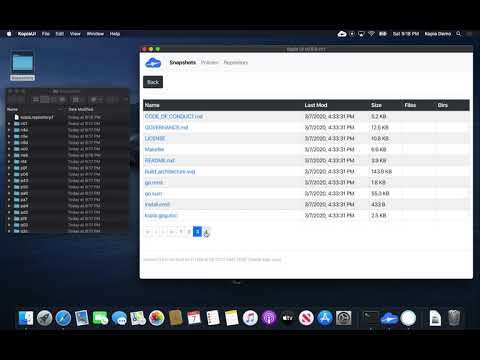
Using Kopia via graphical user interface (note: the video is of an older version of Kopia and the interface is different in the current version of Kopia, but the main principles of the interface are the same):
Getting Started
See Kopia Documentation for more information.
Building Kopia
See Build Infrastructure for more information on building Kopia and working with the source code.
Licensing
Kopia is licensed under the Apache License, Version 2.0. See LICENSE for the full license text.
Contribution Guidelines
Kopia is open source and contributions are welcome. For more information on how to contribute see the Contribution Guidelines.
Reporting Security Issues
If you find a security issue you'd like to disclose privately, please contact security@kopia.io or via direct message to maintainers on Slack.